CSS-стилизация изображений
Оглавление
Узнайте, как стилизовать изображения с помощью CSS.
Округленные изображения
Используйте свойство border-radius для создания закругленных изображений:

Пример
Округленное изображение:
       img {
  border-radius: 8px;
}
Попробуйте сами →
<!DOCTYPE html>
<html>
<head>
<style>
img {
  border-radius: 8px;
}
</style>
</head>
<body>

<h2>Rounded Image</h2>

<p>Use the border-radius property to create rounded images:</p>

<img src="paris.jpg" alt="Paris" width="300" height="300">

</body>
</html>
Пример
Обведенное изображение:
       img {
  border-radius: 50%;
}
Попробуйте сами →
<!DOCTYPE html>
<html>
<head>
<style>
img {
  border-radius: 50%;
}
</style>
</head>
<body>

<h2>Circled Image</h2>

<p>Use the border-radius property to create circled images:</p>

<img src="paris.jpg" alt="Paris" width="300" height="300">

</body>
</html>
Миниатюры изображений
Используйте свойство border для создания миниатюр изображений.
Миниатюрное изображение:
Пример
Попробуйте сами →
<!DOCTYPE html>
<html>
<head>
<style>
img {
  border: 1px solid #ddd;
  border-radius: 4px;
  padding: 5px;
  width: 150px;
}
</style>
</head>
<body>

<h2>Thumbnail Image</h2>

<p>Use the border property to create thumbnail images:</p>

<img src="paris.jpg" alt="Paris" style="width:150px">

</body>
</html>
Миниатюрное изображение в качестве ссылки:
Пример
Попробуйте сами →
<!DOCTYPE html>
<html>
<head>
<style>
img {
  border: 1px solid #ddd;
  border-radius: 4px;
  padding: 5px;
  width: 150px;
}

img:hover {
  box-shadow: 0 0 2px 1px rgba(0, 140, 186, 0.5);
}
</style>
</head>
<body>

<h2>Thumbnail Image as Link</h2>

<p>Use the border property to create thumbnail images. Wrap an anchor around the image to use it as a link.</p>
<p>Hover over the image and click on it to see the effect.</p>

<a target="_blank" href="paris.jpg">
  <img src="paris.jpg" alt="Paris" style="width:150px">
</a>

</body>
</html>
Адаптивные изображения
Адаптивные изображения автоматически подстраиваются под размер экрана.
Измените размер окна браузера, чтобы увидеть эффект:

Если вы хотите, чтобы изображение уменьшалось при необходимости, но никогда не увеличивалось до размера, превышающего его исходный размер, добавьте следующее:
Пример
img {
  max-width: 100%;
  height:
auto;
}
Попробуйте сами →
<!DOCTYPE html>
<html>
<head>
<style>
img {
  max-width: 100%;
  height: auto;
}
</style>
</head>
<body>

<h2>Responsive Image</h2>

<p>Responsive images will automatically adjust to fit the size of the screen.</p>
<p>Resize the browser window to see the effect:</p>

<img src="img_5terre_wide.jpg" alt="Cinque Terre" width="1000" height="300">

</body>
</html>
Совет. Узнайте больше об адаптивном веб-дизайне в нашей Учебное пособие по CSS RWD.
Центрировать изображение
Чтобы центрировать изображение, установите для левого и правого полей значение auto и превратите его в элемент block:
Пример
img {
  display: block;
    margin-left: auto;
  margin-right: auto;

width: 50%;
}
Попробуйте сами →
<!DOCTYPE html>
<html>
<head>
<style>
img {
  display: block;
  margin-left: auto;
  margin-right: auto;
}
</style>
</head>
<body>

<h2>Center an Image</h2>

<p>To center an image, set left and right margin to auto, and make it into a block element.</p>

<img src="paris.jpg" alt="Paris" style="width:50%">

</body>
</html>
Полароидные изображения/карточки

Чинкве-Терре

Северное сияние
Пример
div.polaroid {
  width: 80%;
  background-color: white;
  box-shadow: 0 4px 8px 0 rgba(0,
0, 0, 0.2), 0 6px 20px 0 rgba(0, 0, 0, 0.19);
}
img {width: 100%}

div.container {
  text-align: center;
  padding: 10px 20px;
}
Попробуйте сами →
<!DOCTYPE html>
<html>
<head>
<style>
body {margin:25px;}

div.polaroid {
  width: 80%;
  background-color: white;
  box-shadow: 0 4px 8px 0 rgba(0, 0, 0, 0.2), 0 6px 20px 0 rgba(0, 0, 0, 0.19);
  margin-bottom: 25px;
}

div.container {
  text-align: center;
  padding: 10px 20px;
}
</style>
</head>
<body>

<h2>Responsive Polaroid Images / Cards</h2>

<div class="polaroid">
  <img src="img_5terre.jpg" alt="5 Terre" style="width:100%">
  <div class="container">
  <p>Cinque Terre</p>
  </div>
</div>

<div class="polaroid">
  <img src="lights600x400.jpg" alt="Norther Lights" style="width:100%">
  <div class="container">
  <p>Northern Lights</p>
  </div>
</div>

</body>
</html>
Прозрачное изображение
Свойство opacity может принимать значения от 0,0 до 1,0. Чем ниже значение, тем прозрачнее:

непрозрачность 0,2
непрозрачность 0,5
непрозрачность 1
(по умолчанию)
Пример
img {
  opacity: 0.5;
}
Попробуйте сами →
<!DOCTYPE html>
<html>
<head>
<style>
img {
  opacity: 0.5;
}
</style>
</head>
<body>

<h1>Image Transparency</h1>

<p>The opacity property specifies the transparency of an element. The lower the value, the more transparent:</p>

<p>Image with 50% opacity:</p>
<img src="img_forest.jpg" alt="Forest" width="170" height="100">

</body>
</html>
Текст изображения
Как расположить текст на изображении:
Пример
Попробуй сам:
Вверху слева →
<!DOCTYPE html>
<html>
<head>
<style>
.container {
  position: relative;
}

.topleft {
  position: absolute;
  top: 8px;
  left: 16px;
  font-size: 18px;
}

img {
  width: 100%;
  height: auto;
  opacity: 0.3;
}
</style>
</head>
<body>

<h2>Image Text</h2>

<p>Add some text to an image in the top left corner:</p>

<div class="container">
  <img src="img_5terre_wide.jpg" alt="Cinque Terre" width="1000" height="300">
  <div class="topleft">Top Left</div>
</div>

</body>
</html>
Вверху справа →
<!DOCTYPE html>
<html>
<head>
<style>
.container {
  position: relative;
}

.topright {
  position: absolute;
  top: 8px;
  right: 16px;
  font-size: 18px;
}

img {
  width: 100%;
  height: auto;
  opacity: 0.3;
}
</style>
</head>
<body>

<h2>Image Text</h2>

<p>Add some text to an image in the top right corner:</p>

<div class="container">
  <img src="img_5terre_wide.jpg" alt="Cinque Terre" width="1000" height="300">
  <div class="topright">Top Right</div>
</div>

</body>
</html>
Внизу слева →
<!DOCTYPE html>
<html>
<head>
<style>
.container {
  position: relative;
}

.bottomleft {
  position: absolute;
  bottom: 8px;
  left: 16px;
  font-size: 18px;
}

img {
  width: 100%;
  height: auto;
  opacity: 0.3;
}
</style>
</head>
<body>

<h2>Image Text</h2>

<p>Add some text to an image in the bottom left corner:</p>

<div class="container">
  <img src="img_5terre_wide.jpg" alt="Cinque Terre" width="1000" height="300">
  <div class="bottomleft">Bottom Left</div>
</div>

</body>
</html>
Внизу справа →
<!DOCTYPE html>
<html>
<head>
<style>
.container {
  position: relative;
}

.bottomright {
  position: absolute;
  bottom: 8px;
  right: 16px;
  font-size: 18px;
}

img {
  width: 100%;
  height: auto;
  opacity: 0.3;
}
</style>
</head>
<body>

<h2>Image Text</h2>

<p>Add some text to an image in the bottom right corner:</p>

<div class="container">
  <img src="img_5terre_wide.jpg" alt="Cinque Terre" width="1000" height="300">
  <div class="bottomright">Bottom Right</div>
</div>

</body>
</html>
По центру →
<!DOCTYPE html>
<html>
<head>
<style>
.container {
  position: relative;
}

.center {
  position: absolute;
  top: 50%;
  left: 50%;
  transform: translate(-50%, -50%);
  font-size: 18px;
}

img {
  width: 100%;
  height: auto;
  opacity: 0.3;
}
</style>
</head>
<body>

<h2>Image Text</h2>

<p>Center text in image:</p>

<div class="container">
  <img src="img_5terre_wide.jpg" alt="Cinque Terre" width="1000" height="300">
  <div class="center">Centered</div>
</div>

</body>
</html>
Фильтры изображений
Свойство CSS filter добавляет к элементу визуальные эффекты (например, размытие и насыщенность).
Примечание. Свойство фильтра не поддерживается в Internet Explorer и Edge 12.
Пример
Измените цвет всех изображений на черно-белый (100% серый):
   img {
  filter: grayscale(100%);
}
Попробуйте сами →
<!DOCTYPE html>
<html>
<head>
<style>
body {
  background-color:white;
}
img {
  width: 33%;
  height: auto;
  float: left;
  max-width: 235px;
}

.blur {filter: blur(4px);}
.brightness {filter: brightness(250%);}
.contrast {filter: contrast(180%);}
.grayscale {filter: grayscale(100%);}
.huerotate {filter: hue-rotate(180deg);}
.invert {filter: invert(100%);}
.opacity {filter: opacity(50%);}
.saturate {filter: saturate(7);}
.sepia {filter: sepia(100%);}
.shadow {filter: drop-shadow(8px 8px 10px green);}
</style>
</head>
<body>

<h2>Image Filters</h2>

<p><strong>Note:</strong> The filter property is not supported in Internet Explorer or Edge 12.</p>

<img src="pineapple.jpg" alt="Pineapple" width="300" height="300">
<img class="blur" src="pineapple.jpg" alt="Pineapple" width="300" height="300">
<img class="brightness" src="pineapple.jpg" alt="Pineapple" width="300" height="300">
<img class="contrast" src="pineapple.jpg" alt="Pineapple" width="300" height="300">
<img class="grayscale" src="pineapple.jpg" alt="Pineapple" width="300" height="300">
<img class="huerotate" src="pineapple.jpg" alt="Pineapple" width="300" height="300">
<img class="invert" src="pineapple.jpg" alt="Pineapple" width="300" height="300">
<img class="opacity" src="pineapple.jpg" alt="Pineapple" width="300" height="300">
<img class="saturate" src="pineapple.jpg" alt="Pineapple" width="300" height="300">
<img class="sepia" src="pineapple.jpg" alt="Pineapple" width="300" height="300">
<img class="shadow" src="pineapple.jpg" alt="Pineapple" width="300" height="300">

</body>
</html>
Совет. Чтобы узнать больше о CSS-фильтрах, перейдите к нашему справочнику по CSS-фильтрам.
Наложение изображения при наведении
Создайте эффект наложения при наведении:
Пример
Затухание текста:

Попробуйте сами →
<!DOCTYPE html>
<html>
<head>
<style>
.container {
  position: relative;
  width: 50%;
}

.image {
  display: block;
  width: 100%;
  height: auto;
}

.overlay {
  position: absolute;
  top: 0;
  bottom: 0;
  left: 0;
  right: 0;
  height: 100%;
  width: 100%;
  opacity: 0;
  transition: .5s ease;
  background-color: #008CBA;
}

.container:hover .overlay {
  opacity: 1;
}

.text {
  color: white;
  font-size: 20px;
  position: absolute;
  top: 50%;
  left: 50%;
  transform: translate(-50%, -50%);
  -ms-transform: translate(-50%, -50%);
}
</style>
</head>
<body>

<h2>Fade in Overlay</h2>

<div class="container">
  <img src="img_avatar.png" alt="Avatar" class="image">
  <div class="overlay">
    <div class="text">Hello World</div>
  </div>
</div>

</body>
</html>
Пример
Исчезновение в коробке:
Попробуйте сами →
<!DOCTYPE html>
<html>
<head>
<style>
.container {
  position: relative;
  width: 50%;
}

.image {
  opacity: 1;
  display: block;
  width: 100%;
  height: auto;
  transition: .5s ease;
  backface-visibility: hidden;
}

.middle {
  transition: .5s ease;
  opacity: 0;
  position: absolute;
  top: 50%;
  left: 50%;
  transform: translate(-50%, -50%);
  -ms-transform: translate(-50%, -50%)
}

.container:hover .image {
  opacity: 0.3;
}

.container:hover .middle {
  opacity: 1;
}

.text {
  background-color: #4CAF50;
  color: white;
  font-size: 16px;
  padding: 16px 32px;
}
</style>
</head>
<body>

<h2>Fade in a Box</h2>

<div class="container">
  <img src="img_avatar.png" alt="Avatar" class="image" style="width:100%">
  <div class="middle">
    <div class="text">John Doe</div>
  </div>
</div>

</body>
</html>
Пример
Слайд (сверху):
Попробуйте сами →
<!DOCTYPE html>
<html>
<head>
<style>
.container {
  position: relative;
  width: 50%;
}

.image {
  display: block;
  width: 100%;
  height: auto;
}

.overlay {
  position: absolute;
  bottom: 100%;
  left: 0;
  right: 0;
  background-color: #008CBA;
  overflow: hidden;
  width: 100%;
  height: 0;
  transition: .5s ease;
}

.container:hover .overlay {
  bottom: 0;
  height: 100%;
}

.text {
  white-space: nowrap;
  color: white;
  font-size: 20px;
  position: absolute;
  overflow: hidden;
  top: 50%;
  left: 50%;
  transform: translate(-50%, -50%);
  -ms-transform: translate(-50%, -50%);
}
</style>
</head>
<body>

<h2>Slide in Overlay from the Top</h2>

<div class="container">
  <img src="img_avatar.png" alt="Avatar" class="image">
  <div class="overlay">
    <div class="text">Hello World</div>
  </div>
</div>

</body>
</html>
Пример
Слайд (внизу):
Попробуйте сами →
<!DOCTYPE html>
<html>
<head>
<style>
.container {
  position: relative;
  width: 50%;
}

.image {
  display: block;
  width: 100%;
  height: auto;
}

.overlay {
  position: absolute;
  bottom: 0;
  left: 0;
  right: 0;
  background-color: #008CBA;
  overflow: hidden;
  width: 100%;
  height: 0;
  transition: .5s ease;
}

.container:hover .overlay {
  height: 100%;
}

.text {
  white-space: nowrap;
  color: white;
  font-size: 20px;
  position: absolute;
  overflow: hidden;
  top: 50%;
  left: 50%;
  transform: translate(-50%, -50%);
  -ms-transform: translate(-50%, -50%);
}
</style>
</head>
<body>

<h2>Slide in Overlay from the Bottom</h2>

<div class="container">
  <img src="img_avatar.png" alt="Avatar" class="image">
  <div class="overlay">
    <div class="text">Hello World</div>
  </div>
</div>

</body>
</html>
Пример
Слайд (слева):
Попробуйте сами →
<!DOCTYPE html>
<html>
<head>
<style>
.container {
  position: relative;
  width: 50%;
}

.image {
  display: block;
  width: 100%;
  height: auto;
}

.overlay {
  position: absolute;
  bottom: 0;
  left: 0;
  right: 0;
  background-color: #008CBA;
  overflow: hidden;
  width: 0;
  height: 100%;
  transition: .5s ease;
}

.container:hover .overlay {
  width: 100%;
}

.text {
  white-space: nowrap;
  color: white;
  font-size: 20px;
  position: absolute;
  overflow: hidden;
  top: 50%;
  left: 50%;
  transform: translate(-50%, -50%);
  -ms-transform: translate(-50%, -50%);
}
</style>
</head>
<body>

<h2>Slide in Overlay from the Left</h2>

<div class="container">
  <img src="img_avatar.png" alt="Avatar" class="image">
  <div class="overlay">
    <div class="text">Hello World</div>
  </div>
</div>

</body>
</html>
Пример
Слайд (справа):
Попробуйте сами →
<!DOCTYPE html>
<html>
<head>
<style>
.container {
  position: relative;
  width: 50%;
}

.image {
  display: block;
  width: 100%;
  height: auto;
}

.overlay {
  position: absolute;
  bottom: 0;
  left: 100%;
  right: 0;
  background-color: #008CBA;
  overflow: hidden;
  width: 0;
  height: 100%;
  transition: .5s ease;
}

.container:hover .overlay {
  width: 100%;
  left: 0;
}

.text {
  white-space: nowrap;
  color: white;
  font-size: 20px;
  position: absolute;
  overflow: hidden;
  top: 50%;
  left: 50%;
  transform: translate(-50%, -50%);
  -ms-transform: translate(-50%, -50%);
}
</style>
</head>
<body>

<h2>Slide in Overlay from the Right</h2>

<div class="container">
  <img src="img_avatar.png" alt="Avatar" class="image">
  <div class="overlay">
    <div class="text">Hello World</div>
  </div>
</div>

</body>
</html>
Перевернуть изображение
Наведите указатель мыши на изображение:
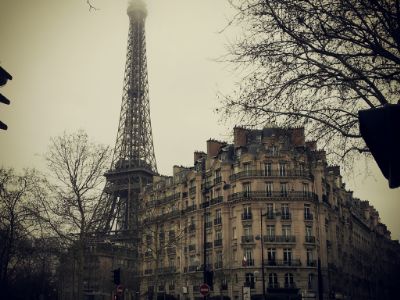
Пример
 img:hover {

  transform: scaleX(-1);
}
Попробуйте сами →
<!DOCTYPE html>
<html>
<head>
<style>
img:hover {
  transform: scaleX(-1);
}
</style>
</head>
<body>

<h2>Flip an Image</h2>
<p>Move your mouse over the image.</p>

<img src="paris.jpg" alt="Paris" width="400" height="300">

</body>
</html>
Адаптивная галерея изображений
CSS можно использовать для создания галерей изображений. В этом примере используются медиа-запросы для изменения расположения изображений на экранах разных размеров. Измените размер окна браузера, чтобы увидеть эффект:


Пример
.responsive {

padding: 0 6px;
  float: left;
  width: 24.99999%;
}
@media only screen and
(max-width: 700px){
  .responsive {

width: 49.99999%;
    margin: 6px
0;
  }
}
@media only screen and (max-width: 500px){
  .responsive {
    width: 100%;
    }
}
Попробуйте сами →
<!DOCTYPE html>
<html>
<head>
<style>
div.gallery {
  border: 1px solid #ccc;
}

div.gallery:hover {
  border: 1px solid #777;
}

div.gallery img {
  width: 100%;
  height: auto;
}

div.desc {
  padding: 15px;
  text-align: center;
}

* {
  box-sizing: border-box;
}

.responsive {
  padding: 0 6px;
  float: left;
  width: 24.99999%;
}

@media only screen and (max-width: 700px) {
  .responsive {
    width: 49.99999%;
    margin: 6px 0;
  }
}

@media only screen and (max-width: 500px) {
  .responsive {
    width: 100%;
  }
}

.clearfix:after {
  content: "";
  display: table;
  clear: both;
}
</style>
</head>
<body>

<h2>Responsive Image Gallery</h2>

<h4>Resize the browser window to see the effect.</h4>

<div class="responsive">
  <div class="gallery">
    <a target="_blank" href="img_5terre.jpg">
      <img src="img_5terre.jpg" alt="Cinque Terre" width="600" height="400">
    </a>
    <div class="desc">Add a description of the image here</div>
  </div>
</div>


<div class="responsive">
  <div class="gallery">
    <a target="_blank" href="img_forest.jpg">
      <img src="img_forest.jpg" alt="Forest" width="600" height="400">
    </a>
    <div class="desc">Add a description of the image here</div>
  </div>
</div>

<div class="responsive">
  <div class="gallery">
    <a target="_blank" href="img_lights.jpg">
      <img src="img_lights.jpg" alt="Northern Lights" width="600" height="400">
    </a>
    <div class="desc">Add a description of the image here</div>
  </div>
</div>

<div class="responsive">
  <div class="gallery">
    <a target="_blank" href="img_mountains.jpg">
      <img src="img_mountains.jpg" alt="Mountains" width="600" height="400">
    </a>
    <div class="desc">Add a description of the image here</div>
  </div>
</div>

<div class="clearfix"></div>

<div style="padding:6px;">
  <p>This example use media queries to re-arrange the images on different screen sizes: for screens larger than 700px wide, it will show four images side by side, for screens smaller than 700px, it will show two images side by side. For screens smaller than 500px, the images will stack vertically (100%).</p>
  <p>You will learn more about media queries and responsive web design later in our CSS Tutorial.</p>
</div>

</body>
</html>
Совет. Узнайте больше об адаптивном веб-дизайне в нашей Учебное пособие по CSS RWD.
Модальное изображение (расширенное)
Это пример, демонстрирующий, как CSS и JavaScript могут работать вместе.
Сначала используйте CSS, чтобы создать модальное окно (диалоговое окно) и скройте его с помощью по умолчанию.
Затем используйте JavaScript, чтобы отобразить модальное окно и отобразить изображение внутри модального окна, когда пользователь нажимает на изображение:
Пример
// Get the modal
var modal = document.getElementById('myModal');
// Get the image and insert it
inside the modal - use its "alt" text as a caption
var img =
document.getElementById('myImg');
var modalImg = document.getElementById("img01");
var captionText = document.getElementById("caption");
img.onclick =
function(){
  modal.style.display = "block";
  modalImg.src = this.src;
  captionText.innerHTML = this.alt;
}

// Get the <span> element that closes the modal
var span =
document.getElementsByClassName("close")[0];
// When the user clicks
on <span> (x), close the modal
span.onclick = function() {
  modal.style.display = "none";
}
Попробуйте сами →
<!DOCTYPE html>
<html>
<head>
<style>
#myImg {
border-radius: 5px;
cursor: pointer;
transition: 0.3s;
}
#myImg:hover {opacity: 0.7;}
/* The Modal (background) */
.modal {
display: none; /* Hidden by default */
position: fixed; /* Stay in place */
z-index: 1; /* Sit on top */
padding-top: 100px; /* Location of the box */
left: 0;
top: 0;
width: 100%; /* Full width */
height: 100%; /* Full height */
overflow: auto; /* Enable scroll if needed */
background-color: rgb(0,0,0); /* Fallback color */
background-color: rgba(0,0,0,0.9); /* Black w/ opacity */
}
/* Modal Content (image) */
.modal-content {
margin: auto;
display: block;
width: 80%;
max-width: 700px;
}
/* Caption of Modal Image */
#caption {
margin: auto;
display: block;
width: 80%;
max-width: 700px;
text-align: center;
color: #ccc;
padding: 10px 0;
height: 150px;
}
/* Add Animation */
.modal-content, #caption {
animation-name: zoom;
animation-duration: 0.6s;
}
@keyframes zoom {
from {transform: scale(0.1)}
to {transform: scale(1)}
}
/* The Close Button */
.close {
position: absolute;
top: 15px;
right: 35px;
color: #f1f1f1;
font-size: 40px;
font-weight: bold;
transition: 0.3s;
}
.close:hover,
.close:focus {
color: #bbb;
text-decoration: none;
cursor: pointer;
}
/* 100% Image Width on Smaller Screens */
@media only screen and (max-width: 700px){
.modal-content {
width: 100%;
}
}
</style>
</head>
<body>
<h2>Image Modal</h2>
<p>Here, we use CSS to create a modal (dialog box) that is hidden by default.</p>
<p>We use JavaScript to trigger the modal and to display the current image inside the modal when it is clicked on. Also note that we use the value from the image's "alt" attribute as an image caption text inside the modal.</p>
<p>Don't worry if you do not understand the code right away. When you are done with CSS, go to our JavaScript Tutorial to learn more.</p>
<img id="myImg" src="img_lights.jpg" alt="Northern Lights, Norway" width="300" height="200">
<!-- The Modal -->
<div id="myModal" class="modal">
<span class="close">&times;</span>
<img class="modal-content" id="img01">
<div id="caption"></div>
</div>
<script>
// Get the modal
var modal = document.getElementById('myModal');
// Get the image and insert it inside the modal - use its "alt" text as a caption
var img = document.getElementById('myImg');
var modalImg = document.getElementById("img01");
var captionText = document.getElementById("caption");
img.onclick = function(){
modal.style.display = "block";
modalImg.src = this.src;
captionText.innerHTML = this.alt;
}
// Get the <span> element that closes the modal
var span = document.getElementsByClassName("close")[0];
// When the user clicks on <span> (x), close the modal
span.onclick = function() {
modal.style.display = "none";
}
</script>
</body>
</html>